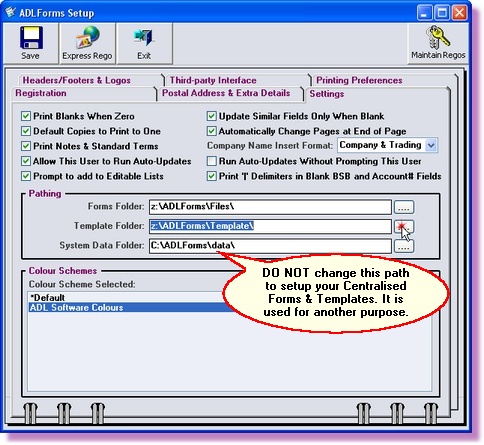
ADLInspect allows multiple computers running ADLInspect to save and access forms and form templates from a single location on a Server computer to which they are connected (networked). This allows a number of users within an office to access the same form and template files.
Before you start you must first ensure:
1. |
ADLForms & ADLInspect are installed on all of the 'client computers'. 'Client computers' are computers which are used by people who wish to use ADLInspect &/or ADLForms (For example: Barry is a person using a 'client computer' because he wants to access forms which are shared in his office located on the 'server computer')
|
2. |
The 'server computer' has appropriate folders setup to store the saved forms and templates (eg. "C:\ADL\Files" & "C:\ADL\Templates"). Important: If the 'server computer' is a computer that also acts as a 'client computer' (ie. it has ADLForms installed on it for user use), you must ensure that the saved forms & template paths are NOT the same as the default paths setup by ADLForms on installation (ie. "C:\ADLForms\Files" & "C:\ADLForms\Template").
|
3. |
All 'client computers' (including the 'server computer' if used as a 'client computer') have the appropriate paths permanently 'mapped' as a common drive (eg. map the server's "C:\ADL" path as the "Z" drive on all 'client computers'). If you are not sure how to 'map' a path as a drive letter please contact your network administrator or technician.
|
For each of the 'client computers' please do the following:
1. |
Open ADLInspect
|
2. |
Select ‘Register ADLInspect’ from the ‘File’ menu within the ADLInspect Manager
|
3. |
Click on the <Settings> tab
|
4. |
Change the 'Forms Folder' to the appropriate path on your 'server computer' (You may use the <browse> button to the right of the field to locate the folder required). Please contact your network administrator or technician if the server's ADLForms location is not shared on your network.
e.g. "Z:\Files\"
|
5. |
Change the 'Template Folder' to the appropriate path on your 'server computer' (You may use the <browse> button to the right of the field to locate the folder required). Please contact your network administrator or technician if the server's ADLForms location is not shared on your network.
e.g. "Z:\Templates\"
|
6. |
Click the <Save> button to save the changes
|
7. |
Click the <Exit> button to return to the ADLInspect Manager
|