You use this process to input your basic business details and your registration codes. It is important that you get all of these details correct so that ADLInspect can work correctly.
1. |
Open the ADLInspect Manager
|
2. |
Select ‘Register ADLInspect’ from the ‘File’ menu within the ADLInspect Manager
|
3. |
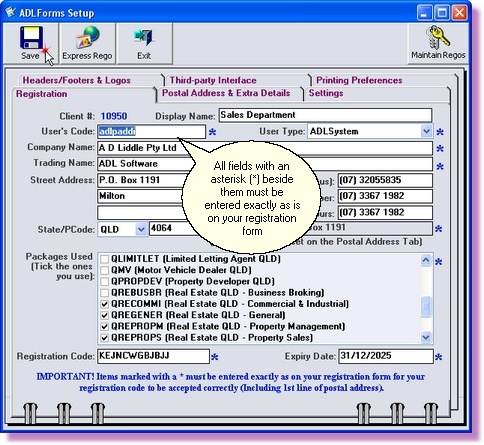
Enter details as shown on your Registration Form
All fields with an asterisk next to them must be entered exactly as shown on your registration form (Lower and UPPER case letters must be the same)
If you do not have your Registration Form please contact our friendly support team (click here for contact details)
|
4. |
You can then enter additional information, on the <Registration> & <Postal Address & Extra Details> tabs, where necessary
|
5. |
Click the <Save> button to complete your registration
A popup box should appear advising that your "Details have been saved successfully". If you do not get this message see below
|
6. |
Once your details are saved correctly click the <Exit> button to return to the ADLInspect Manager
|
Error on Saving?
If you have entered any System Required details incorrectly, the program will display an error message stating that your Registration Details are Incorrect. System Required fields are those signified by an asterisk (*). These fields are tied to your Registration Code. If these fields are not EXACTLY the same as shown on your Registration Details sheet (Supplied to you when you register), this error will occur. If this error does occur recheck all the fields with an asterisk next to them and try again.