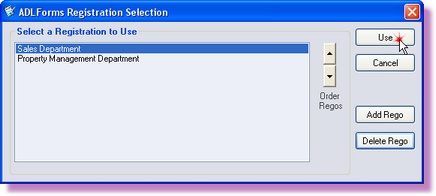
If you have more than one ADLForms &/or ADLInspect registration, to be used in the one office, you can follow these steps so that all registrations will appear on the one computer. Once multiple registrations are setup on the one computer, whenever you create, open or print a form through ADLInspect, you will be prompted to select the registration you wish to use within the 'Registration Selection' window as shown below:
1. |
Open ADLInspect
|
2. |
Select ‘Register ADLInspect’ from the ‘File’ menu within the ADLInspect Manager
|
3. |
Click on <Maintain Regos>
|
4. |
Click on <Add Rego>
|
5. |
Highlight the bottom registration and click <Use> This will take you back to the 'Options' window
|
6. |
You will now need to insert the registration details of the second office
If you have an Internet connection, refer to step 3 of Express Registration If you do not have an Internet connection, refer to step 3 of Manual Registration
|
7. |
Change the 'Display Name' field on the <Registration> tab if required
This field will only display if you have setup more than one registration and will be the name that appears in the 'Registration Selection' window whenever you create, open or print a form through ADLInspect in the future
|
8. |
Update all other user details and options as required (See ADLInspect Setup)
|
9. |
Click the <Save> button to complete your registration
A popup box should appear advising that your "Details have been saved successfully". If you do not get this message see below
|
10. |
Click the <Exit> button to return to the ADLInspect Manager
|
11. |
When you create, open or print a form through ADLInspect again it will prompt you to select a registration, highlight the registration you want to use and click on <Use>
If the registrations appear as the same name or is incorrect refer to Change Display Names
|
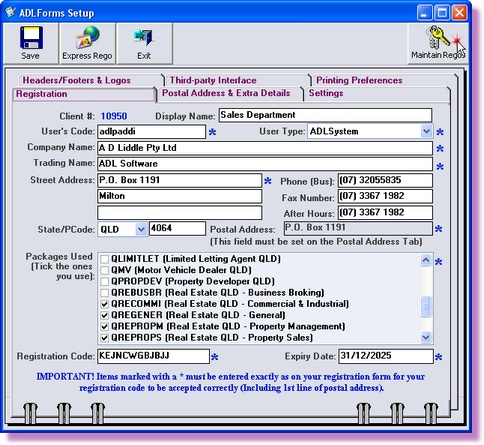
Error on Saving?
If you have entered any System Required details incorrectly, the program will popup an error stating that your Registration Details are Incorrect. System Required fields are those signified by an asterisk (*). These fields are tied to your Registration Code. If these fields are not EXACTLY the same as shown on your Registration Details sheet (Supplied to you when you register), this error will occur. If this error does occur recheck all the fields with an asterisk next to them and try again.