The Express Registration facility can be used to download your basic business details and your registration codes. This ensures that your registration details are valid so your copy of ADLForms can work correctly.
You must have an active internet connection to use Express Registration. If you do not have an active internet connection you can use a manual registration.
1. |
Open ADLForms
|
2. |
Click on <Options> (Previously <Setup Options>)
|
3. |
Click on the <Express Rego> Button. It is located next to the <Save> and <Exit> button at the top of the window.
If there is no <Express Rego> button you are running an old version of the program and should upgrade to the latest version of the software using a Web Installation.
|
4. |
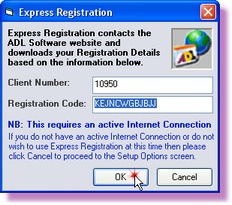
Enter your 'Client Number' and 'Registration Code'
If you do not have these codes call, fax or e-mail ADL Software's friendly support team. Please click here for these details.
|
5. |
Click <OK> Your registration details will be automatically downloaded from the ADL Software website and entered into your setup window
|
6. |
After successfully executing Express Registration you must then enter additional information, that is required for printing to forms when necessary, on the <Postal Address & Extra Details> tab.
|
7. |
Click the <Save> button to complete your registration.
|
6. |
A popup box should appear advising that your "Details have been saved successfully". If you do not get this message see below.
|
7. |
Click on the <Exit> button to take you back to the 'Main Menu' |

Error on Saving?
If you have entered any System Required details incorrectly, the program will popup an error stating that your Registration Details are Incorrect. System Required fields are those signified by an asterisk (*). These fields are tied to your Registration Code. If these fields are not EXACTLY the same as shown on your Registration Details sheet (Supplied to you when you register), this error will occur. If this error does occur recheck all the fields with an asterisk next to them and try again.